

E-Mail to Post
Import received emails (e.g., newsletters) as posts into your HumHub spaces or profile.
Requirements
- HumHub 1.18 (aktuell- noch in Beta-Phase !)
- IMAP email account with SSL support
Features
- Automatic hourly import of emails from IMAP mailboxes
- Flexible targeting: Import emails into spaces or user profiles
- Automatic archiving: Imported emails are moved to a "posted" subfolder in your e-mail account
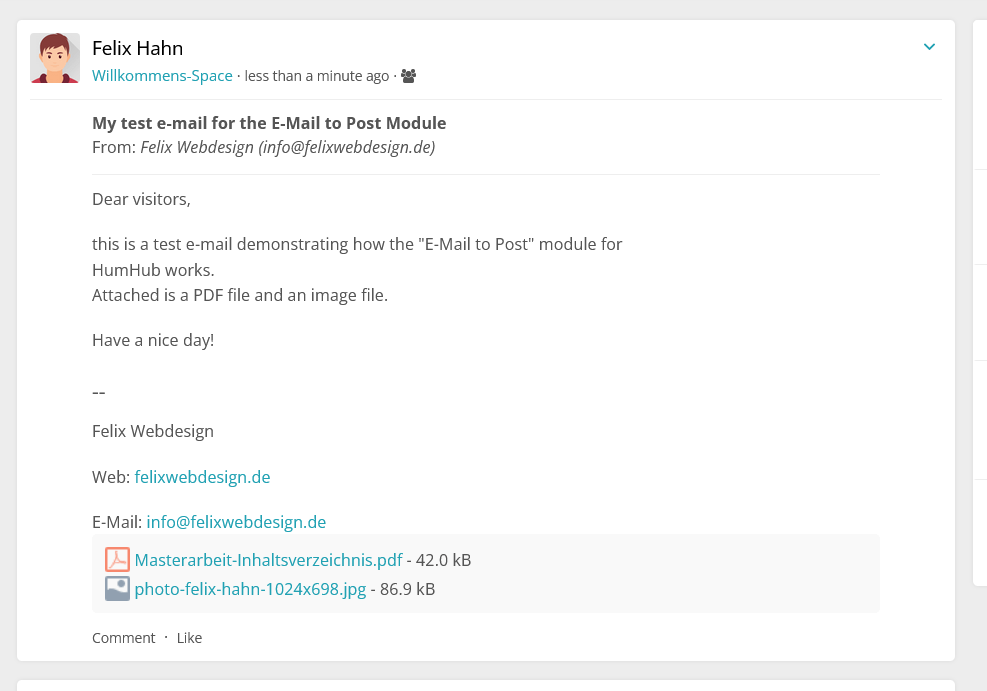
- Attachment support: Email attachments are uploaded to HumHub
- Content filtering: URL blacklist (admin) and keyword filter (user)
- Permission control: User group-based access management
User configuration
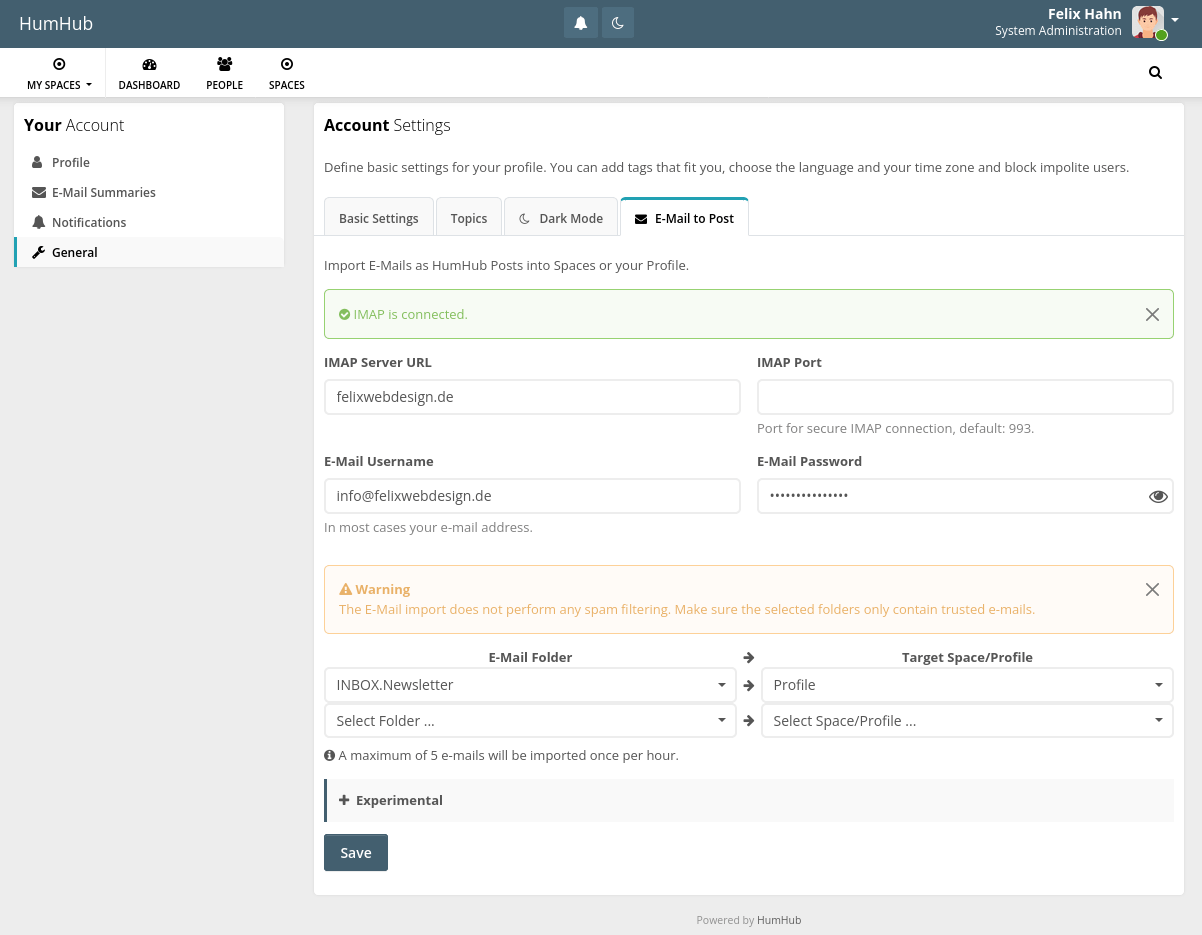
Authorised users can configure their IMAP connection under Account settings → Email to post .
IMAP connection Setup
1. Server settings
- Server URL (e.g. `imap.gmail.com`)
- Port (default: 993 for SSL)
- Username (usually your e-mail address)
- password
2. Folder mapping
- Select email folders to be monitored.
- Connect each folder to a HumHub space or your profile.
Recommendation: Create a separate email folder for emails that are to be imported. After the import, emails are automatically moved to a subfolder called „posted“ to avoid duplicate imports.
Tested e-mail providers
- Self-hosted Plesk-based email server
- All-Inkl e-mail server
- Gmail (requires application password)
How to connect to Gmail
To connect to Gmail, instead of your regular password you need to enter a Application password .
See: support.google.com/accounts/answer/185833
How it works
Hourly import
The import runs automatically every hour via HumHub's cron system. Emails from specified mailboxes are imported as posts in the configured target spaces/profiles.
Attachments
Attachments are retrieved from the email server and uploaded as attachments to the email post.
Group authorization
The module introduces a user group permission that controls who can import emails.
Default: Only the Administrator user group has this permission.
Administrations
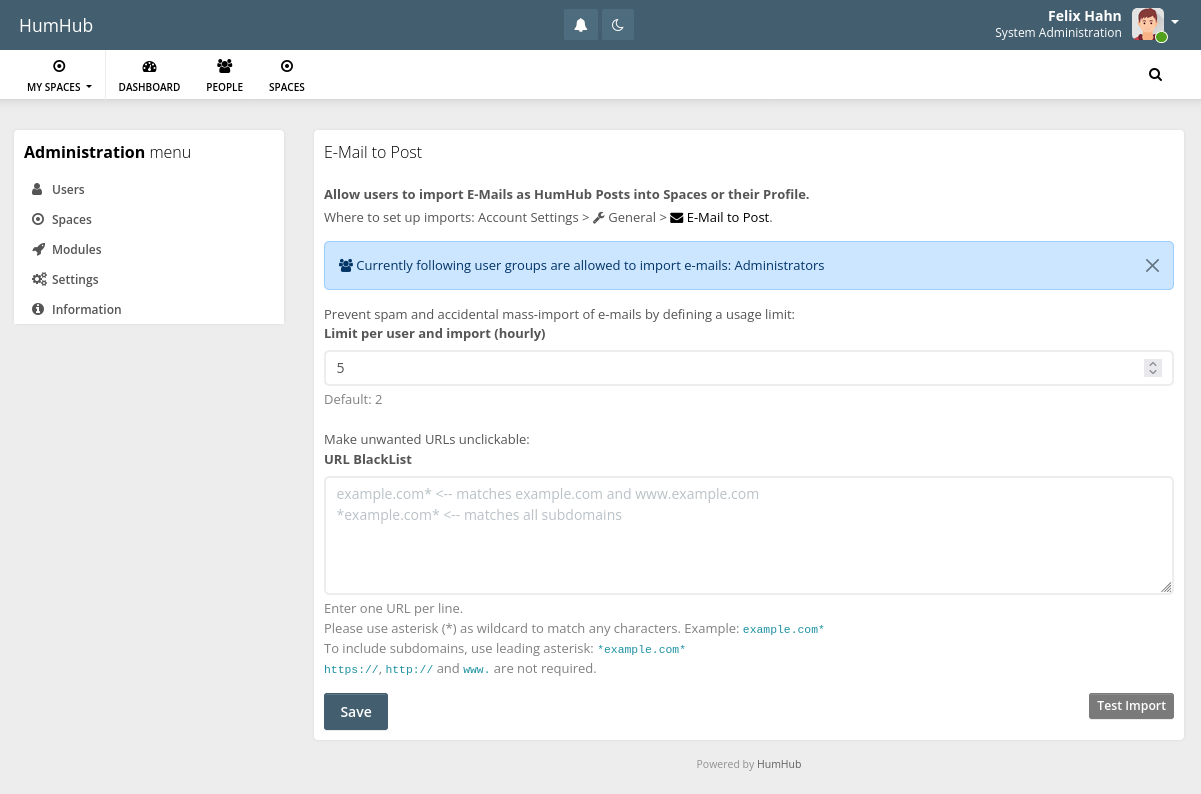
Administrators can access the module settings under Administration → E-Mail to Post .
1. Import limit per user
Set a maximum number of emails that can be imported per user and import to prevent spam.
2. URL blacklist
Define patterns for URLs to be removed from imported emails. Matching links are removed so that the text is no longer clickable.
Format: One pattern per line. Wildcards*) are supported.
Keyword filter (experimental)
Users can define keywords to filter out unwanted content in Account settings → Email to post → Experimental .
Use case: Remove newsletter footers that contain keywords such as „unsubscribe“ together with the surrounding elements (e.g. the email footer).
This is how it works:
- Only works for HTML emails (not for plain text)
- Hides elements that contain a keyword
- Primarily tested for the removal of footers
Important: Filtered content is only hidden (commented out in HTML), not permanently deleted. Do not use this function to hide sensitive or private information.
Important notes
⚠️ Safety warning:
This module does not perform spam filtering. Only connect email folders over which you have full control.
Proven methods:
- Do not connect your main inbox folder.
- Use special folders for imports.
- Move trusted emails manually to the import folder or
- Set up restrictive e-mail filters on your mail server.
Known restrictions:
- Images embedded in emails via a URL will not be displayed with HumHub's default CSP (Content Security Policy) settings.
- The removal of keywords is experimental and may be replaced by a different filter strategy in the future depending on user feedback.
Troubleshooting
IMAP connection failed
- Check the server URL, the port (993 for SSL), the user name and the password.
- For Gmail: Make sure you use an application password.
- Check whether your e-mail provider allows IMAP connections.
Emails are not imported
- Check whether the user has the „Email to post” authorisation.
- Check whether the user has the „Create post” authorisation in the target space.
- Check whether the folder assignment is configured correctly.
Contact
info@felixwebdesign.de
Process of the purchase
After successful online payment you receive an e-mail with the subject "Your Felix Webdesign order is now complete". It contains the order summary and the license key. How you add it, is explained in the HumHub Documentation.
Within a few days up to one week you receive another e-mail with the invoice as PDF.
In the unexpected case that one of these steps does not work, please check your spam folder and otherwise contact us via e-mail or the contact form.
Renewal of the license
A license is for 1 year. The date of expiry is also in the e-mail "Your Felix Webdesign order is now complete".
Die Gebühr zur Verlängerung um ein weiteres Jahr kostet 45€. You receive a reminder e-mail before the expiry date with the information on how to pay the renewal.
Theoretically, you can continue using the module after the license expired. But as you then don't receive any updates anymore, you might get compatibility issues.


Reviews
There are no reviews yet.